Blog
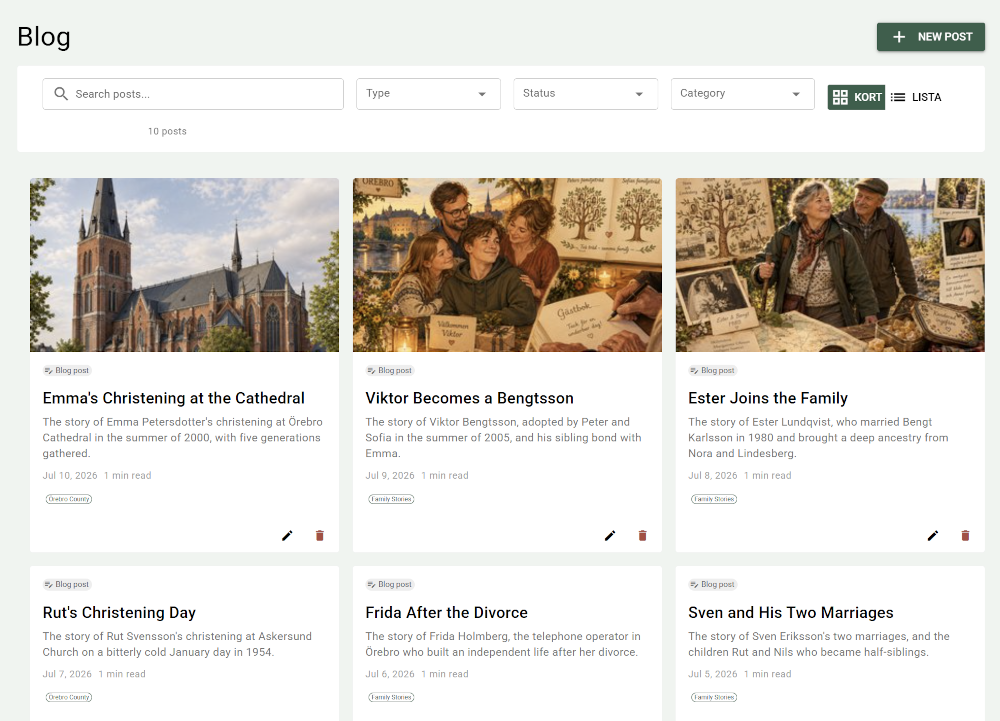
PastPaths has a built-in blog where you can write longer family stories, research logs, and reflections. A blog post isn't the same as notes on a person — it's longer, can be formatted with headings and images, and tagged so it turns up in several different contexts.
When should you use the blog?
Examples of good uses for the blog:
- "Anna's Journey to America" — a longer, multi-part story about an event
- "What I know about grandma's childhood" — a summary based on several sources
- "Research log: the search for Erik Andersson's parents" — where you document how you found a piece of information
- "My family's emigration 1860–1910" — thematic overviews
Less suitable uses:
- Short notes that belong directly on a person ("widowed early")
- Dates and factual details — use the person and event forms instead
Create a blog post
Go to Blog → + New post.
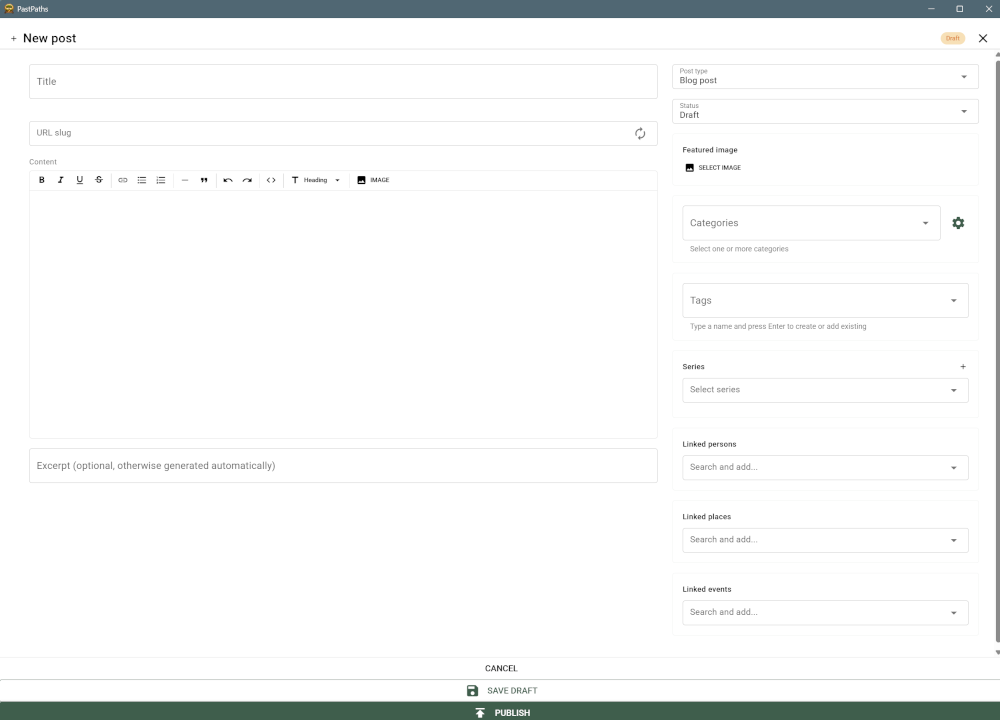
In the editor, you fill in:
| Field | Description |
|---|---|
| Title | The heading of the post. Shown in lists and at the top of the post. |
| URL slug | The web address part, e.g. my-grandmothers-childhood. Generated automatically from the title but can be changed. |
| Content | The actual text, with formatting, images, video, audio, documents, and links. |
| Excerpt | A short summary shown in lists. Generated automatically if left blank. |
| Post type | E.g. blog post, page, research log. |
| Status | Draft, Published, or Archived. |
| Featured image | Image shown at the top of the post and in lists. |
| Categories | Broad groupings — chosen from existing ones or created directly with the New category button next to the field. Editing and merging are done in the taxonomy management. |
| Tags | More free-form labels — can be created directly in the selector by typing and pressing Enter. |
| Series | Link to a series if the post is part of a longer, multi-part story. |
| Linked persons | Persons the post is about. |
| Linked places | Places the post is about. |
| Linked events | Events the post is about. |
The post is saved with Save draft or Publish. Save draft is only shown as long as the post hasn't been published.
Linked persons, places, and events
A post linked to a person, a place, or an event is shown on the Blog tab of that person's, place's, or event's page. Click a post in the list to open it.
The post's own page shows the linked persons, places, and events below the text. Click one of them to open it. The post's sources are there too, along with Related posts — other posts about the same persons.
Images and other media in the blog
You can add images, video, audio, and documents within the running text by clicking the media button in the editor's toolbar.
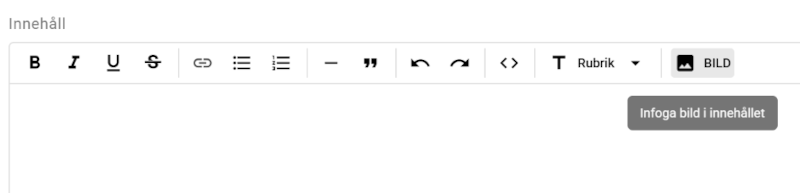
Clicking the media button opens the media picker, where you can:
- Choose an existing file from the media library. You can search the whole library by title, description, file name, tag, or category, and filter by type.
- Upload a new file, which is saved to the media library and inserted into the post right away
The file is inserted at the cursor's position:
- Images are shown in the text.
- Video and audio get a player right in the post.
- Documents, for example a PDF, become a link with the document's title or file name. Clicking the link opens the document outside PastPaths.
You can insert several files in the same post and freely mix text and media.
Featured image
The Select image button under Featured image opens the same media picker but shows only images. The current featured image is marked Current. If you upload a new image here, it becomes the featured image right away.
Reuse images
An image in the media library can both appear in a blog post and be a person's profile picture. Upload once, use everywhere.
Status and publishing
A post can have three statuses:
- Draft — you're still working on the post.
- Published — the post is finished. The publish date is set automatically the first time you switch to this status.
- Archived — an old post you want to keep without deleting it.
The blog list shows posts with all three statuses. Drafts and archived posts are marked with their status. To see only the published posts, for example, filter by status.
Series
If you write several posts that belong together, you can link them into a series. Readers can then navigate between the parts directly from the post view.
To create a series:
- Click the plus button (+) next to the Series heading in the editor. The New series dialog opens.
- Give the series a title (e.g. "Anna's Journey to America") and, if you like, a description. Click Create. The new series is selected for the post right away.
- Set the Order in series (1, 2, 3...) on each post. The field appears when a series is selected.
To add an existing post to a series that already exists, choose the series in the Select series field.
Delete a series
A trash-can icon appears next to the series selector in the editor when a series is chosen. Click it to delete the series. If the series still has posts linked to it, the dialog warns you before you confirm — the posts themselves aren't deleted, they just lose their link to the series and their position in it.
Categories and tags
Tags and categories help you find blog posts later:
- Categories are the broad groupings — e.g. "Stories," "Research logs," "Source criticism." Can have parents/children (two levels).
- Tags are more free-form and specific — e.g. "america," "1900s," "emigration."
A post about Anna's journey to America might get the category Stories and the tags emigration, america, and 1893.
→ More about taxonomy (tags and categories)
Find your blog posts
The blog can be shown either as cards or as a list — switch using the buttons in the filter row. The list view shows title, type, status, date, and categories in a table, making it easier to scan through many posts.
In the blog list, you can:
- Search titles and content. The search ignores upper and lower case and accents, so "asa" finds "Åsa".
- Filter by status — Draft, Published, Archived
- Filter by post type
- Filter by category
- Filter by series — show only the posts in a specific series, sorted by their order in the series (1, 2, 3...) instead of publish date
- Sort by publish date (newest first)
Import from WordPress
Do you already have a blog on WordPress with family stories? You can export it and import it into PastPaths — including images.