GEDCOM import and export
GEDCOM is the standard format genealogy programs use to exchange data. Almost every program — Min Släkt, Disgen, Ancestry, MyHeritage, FamilySearch — can export and import GEDCOM.
In PastPaths, you can:
- Import a GEDCOM file, bringing in persons, events, places, sources, and images
- Export your PastPaths data to GEDCOM so you can move it to another program or share it with relatives
Import a GEDCOM file
Preparation
-
Put the file where it needs to be. If the GEDCOM file comes in a zip archive together with photos — extract the whole archive to the same location. PastPaths looks for photos in the same folder and in subfolders.
-
Make a backup first. Imports can be undone (see below), but it's always wise to have a backup before a major change. You make one on the Import & Export page. → Backups
-
Don't close the program during import. Large files can take several minutes.
Carrying out the import
- Go to Administration → Import & Export
- Choose GEDCOM import
- Choose your
.gedfile (or a.zipfile with GEDCOM and images) - PastPaths tries to detect which program created the file — Ancestry, MyHeritage, TNG, or standard GEDCOM. This means, for example, that Ancestry-specific tag data is brought along.
-
Click Start import
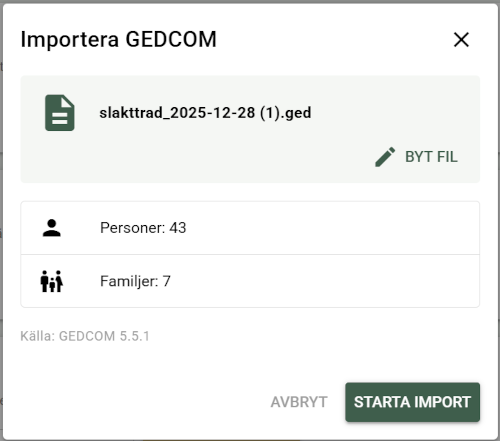
Once you've chosen a file, you can see how many persons and relationships will be loaded. You'll also see which program PastPaths thinks the GEDCOM file comes from. -
A progress indicator shows where you are in the import. Large files (thousands of persons) can take several minutes
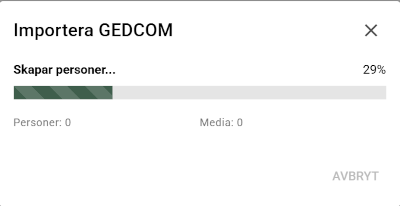
Large files can take a long time to import. You can see that something is happening even if it takes several minutes for large files. 
Once the file has been fully imported, this is shown with a completion mark.
What gets imported?
PastPaths imports:
- Persons with name (including nicknames and alternate names), gender, dates of birth and death — persons marked as deceased with no known date (e.g. the GEDCOM tag
DEAT Y) are correctly marked as deceased - Events — birth, baptism, marriage, divorce, marriage banns, death, burial, emigration, immigration, census, residence, occupation, education, confirmation, graduation, retirement, military service, medical conditions (some programs), and custom/generic events
- Places — with GPS coordinates if the file provides them (standard
MAP/LATI/LONGunderPLAC, or TNG's central place register), and tries to parse the split into city/county/country. If the file comes from PastPaths' own export, the fields are read back exactly as they were, without interpretation - Relationships — parents, partner, children
- Sources with titles, references, and repository details (including contact information and call number), including an attempt to guess the source type (parish register, census, estate inventory, muster roll, etc.)
- Citations with page numbers, reliability, and retrieval date
- Media — images and documents if the files are included
- Notes
Auto-tag on everything imported
Every record that's imported automatically gets a tag marking where it came from:
| Source | Tag |
|---|---|
| Standard GEDCOM | -gedcom-import-YYYY-MM-DD |
| Ancestry | -ancestry-import-YYYY-MM-DD |
| MyHeritage | -myheritage-import-YYYY-MM-DD |
| TNG | -tng-import-YYYY-MM-DD |
| PastPaths' own export | -pastpaths-import-YYYY-MM-DD |
The leading hyphen sorts the tag to the top of the tag list, so machine-applied tags appear before your own.
This means you can later filter persons/places/events/media by that specific tag to see exactly what came from a particular import.
If you import the same file multiple times on the same day, the same tag object is used — you won't get duplicate tag names.
Import history and undoing
Every import creates an entry in the Import/export history.

In the history, you can see:
- When the import was done and how long it took
- Which file was imported and from which source program
- How many persons, places, events, media, and sources came in
- Status — succeeded, failed, or undone
- Any warnings and errors
Undo an import
If the import went wrong — wrong file, duplicates against existing data, or just incorrect — you can undo it. Click Undo on the relevant row in the history.

Before you confirm, a summary is shown of what will be removed:
- Persons that were imported
- Events that become "orphaned" (have no remaining person linked to them)
- Media (both the database row and the file on disk)
- Places that become unused (no person, event, or link left to them)
- Citations created by the import
- Sources created by the import, but only those that haven't picked up any other citations since
What's left behind?
If you've edited anything after the import — e.g. added notes to an imported person, or linked an imported place to an event you created yourself — those links are preserved as far as possible. Places are only deleted if they become completely unused after the imported persons/events have been removed.
Global tags and categories aren't deleted
The auto-import tag (-gedcom-import-...) doesn't disappear when you undo, since other entities may share the same tag. If it becomes unused, you can remove it manually in the taxonomy management.
If something goes wrong during import
If the import is interrupted or fails — try again after:
- Verifying that the file isn't corrupted (open it in a text editor and check that it starts with
0 HEAD) - Closing other programs that might be locking the file
- Checking that you have enough disk space
Export to GEDCOM
To move your PastPaths data to another program:
- Go to Administration → Import & Export
- Click Export GEDCOM file
The export is saved as a ZIP file containing the GEDCOM file export.ged, in the export folder Documents\PastPaths\GEDCOM, with a name like pastpaths_export_20261011_143000.zip. A notification shows the exact path, with the Open folder and Copy path buttons. Extract the ZIP file and import export.ged into the other program. → More about the export folder
The export follows GEDCOM 5.5.1 and includes persons, relationships, events, and sources. Places carry their coordinates in standard form (MAP/LATI/LONG under PLAC), so other programs can read them.
On top of that, PastPaths writes its own subtags under PLAC, preserving address, city, parish, county, region, country, place type, and description separately. Other programs skip them — just as PastPaths skips Ancestry's own tags — but PastPaths recognises its own file on re-import and reads every field back exactly.
Photos and documents aren't included
The export currently doesn't include photos and documents, nor the links between them and persons, events, and places. The files remain in the uploads folder in the PastPaths program folder and are included in a backup. Support for media in the GEDCOM export is planned.
Citations on places aren't carried over
The GEDCOM format has no place for a citation attached to a place. The sources themselves are included in the file, but the citations linking them to individual places are not. Citations on persons and events are exported as usual.
Specific programs
PastPaths has special support for GEDCOM files from:
- Ancestry.com — preserves Ancestry IDs and links
- MyHeritage — preserves MyHeritage IDs
- TNG (The Next Generation) — imports photos, GPS coordinates, living flags
If your file comes from another program (Min Släkt, Disgen, Family Tree Maker, etc.), it's handled as standard GEDCOM.
Tips for a good import
- Clean up the file in the original program first. It's easier to fix errors there than in PastPaths after import.
- The images need to be included. The GEDCOM file only points to the images' filenames — the actual image files need to be alongside the GEDCOM file or in a subfolder. It doesn't matter how you've organized your images into subfolders — PastPaths searches all subfolders recursively, whether the GEDCOM file uses TNG's
_PHOTOtag or standardOBJE/FILEentries. - Large files can take time. A file with thousands of people can take 10–15 minutes to import. Nothing dangerous — just let it finish.