Tags and Categories
Tags and categories are two ways to organize your data across the usual building blocks. Instead of hunting for "all emigrants" among persons, events, and media separately, you can label everything with the tag emigration and find it all in one place.
What's the difference?
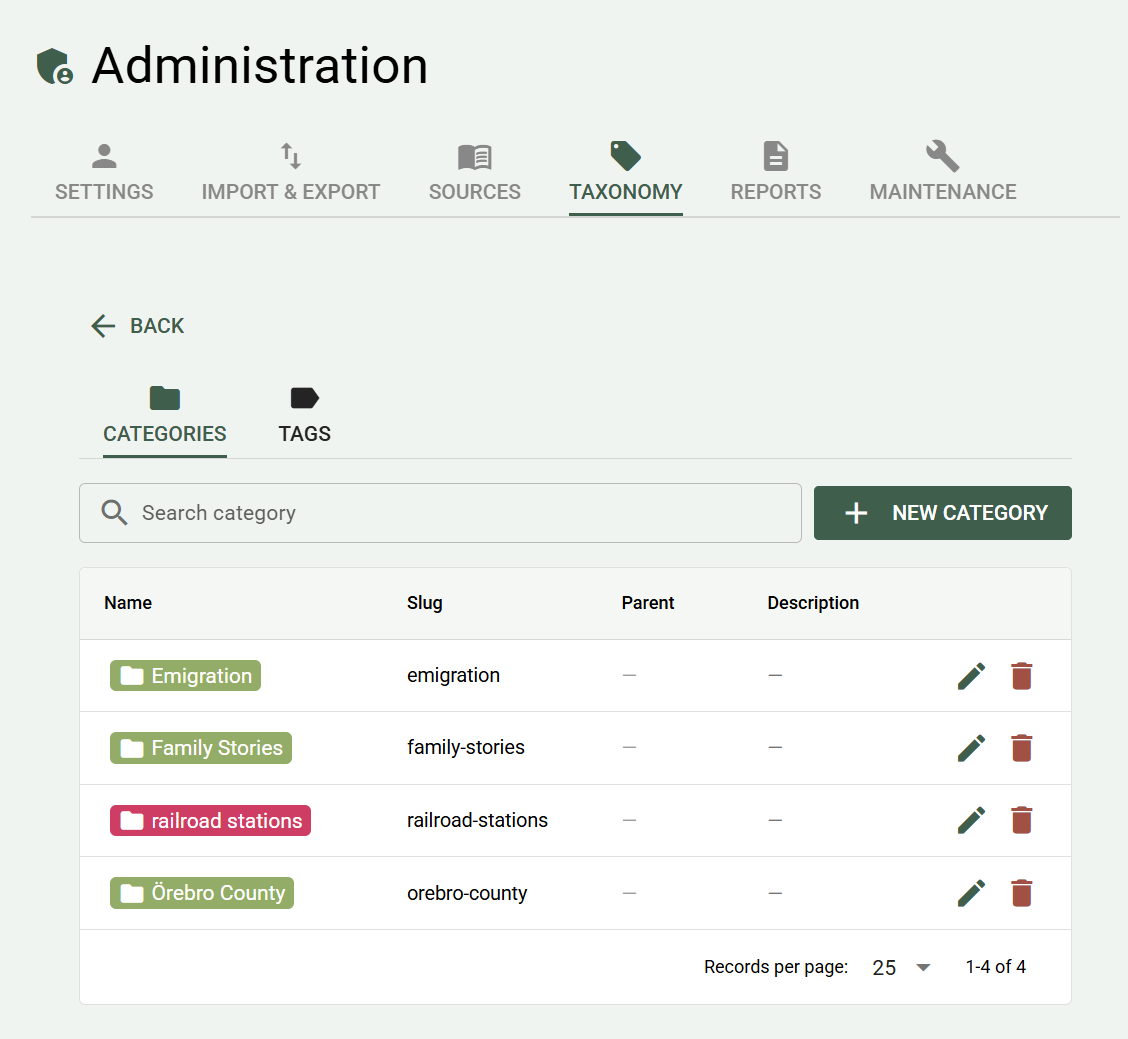
Categories are broad groupings — think folders. A person, place, or event might belong to a category that describes what it is: Crofter, Church site, Military event. Categories can have subcategories — up to two levels.
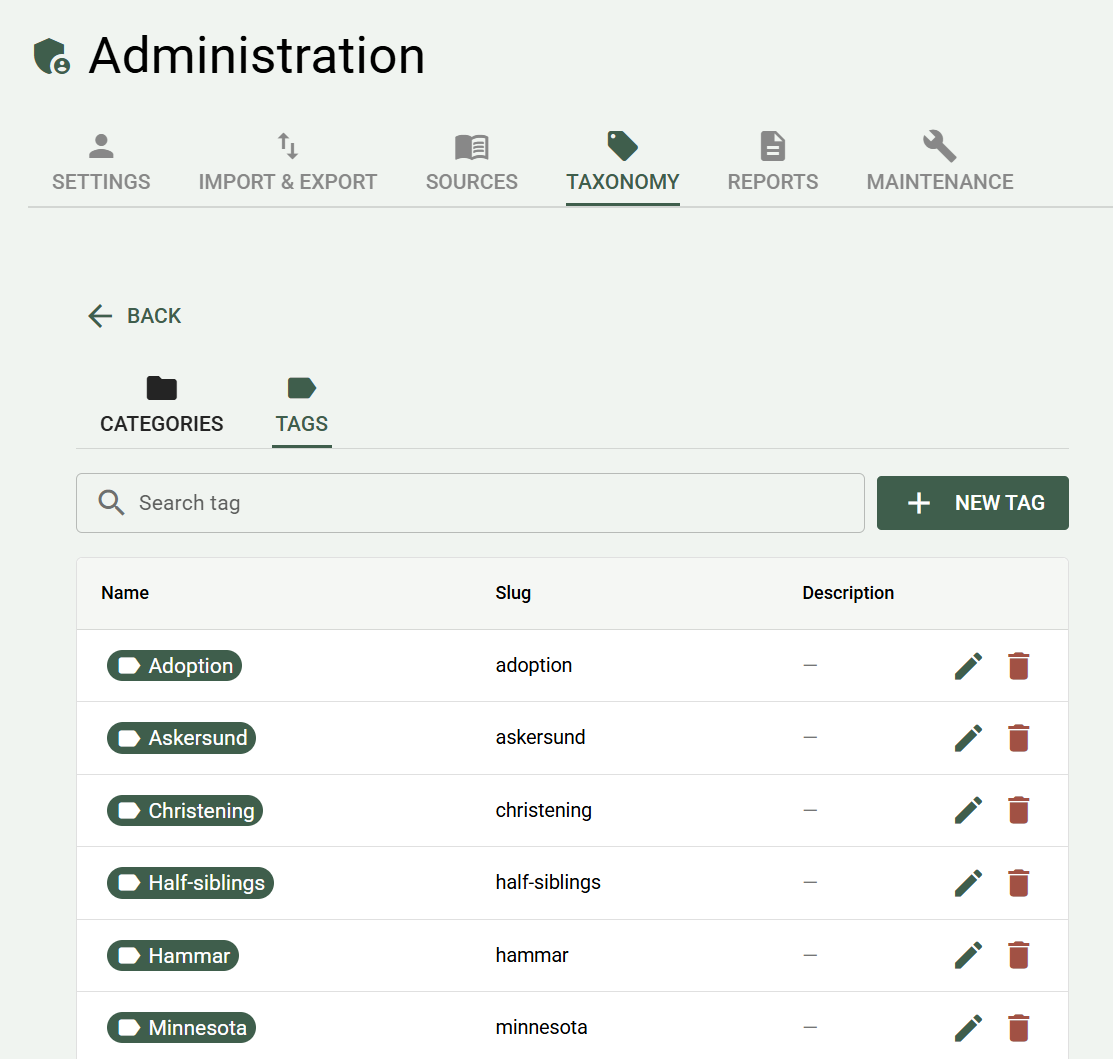
Tags are more free-form labels — think keywords. They're good for themes, projects, or temporary labeling: emigration, unclear origin, to verify, grandmother's side. A record can have as many tags as you like.
There's no technical difference — you decide what you use each one for.
What can be tagged?
Tags and categories can be linked to:
- Persons
- Places
- Events
- Media
- Blog posts
Manage tags and categories
Tags and categories are created and edited under Administration → Taxonomy. From there you'll find two tabs — Categories and Tags — each with its own table.
The table shows the name, slug (the path), parent category (for categories), and an optional description. The buttons on the right of each row let you edit or delete.
Create new
Click New category or New tag. A dialog opens with the following fields:
- Name (required)
- Description (free text, optional)
- Parent category (categories only) — choose an existing root category if you want a subcategory
- Color — choose from the predefined colors, or leave without a color
Tip: The color appears as the background color on the chips when the tag/category is shown on person and media pages. It's a good idea to choose a color so they're easier to tell apart.
Edit
Click the pencil icon next to a row to open the same dialog with the existing values filled in.
Delete
Click the trash can icon. You'll get a confirmation dialog. Deleting a tag or category removes it from every record, person, place, event, and media file that uses it — those records are otherwise unaffected.
Merge duplicates
Since names are already deduplicated technically, "duplicates" can only arise as spelling variants or synonyms (USA and United States, for example). Check at least two rows in the table using the checkboxes, and the Merge selected button appears. Choose which one to keep — the others are removed and all links (persons, places, events, media, blog posts) are moved over automatically. For categories, any subcategories are moved to the kept category.
→ Read more on the Maintenance page
Add tags and categories to a record
On the detail page for a person, place, event, or media file, there's a section for Tags and categories. Click the edit icon in that section to open the Edit tags and categories dialog.
The dialog has two fields — one for categories and one for tags. Both work as searchable multi-select fields:
- Start typing to filter among existing options and select with a click.
- Type a name that doesn't exist and press Enter to create a new tag directly without leaving the dialog. The new tag is shown in gray with a + sign and is saved to the database when you click Save.
- Remove a tag or category by clicking the X on its chip.
Changes aren't saved until you press Save.
Show everything with a tag or category
Click a tag or category chip anywhere in the app to go to its detail page. There you'll see:
- How many persons, places, events, media, and blog posts have that tag or category
- A clickable list for each type, going directly to the respective record
The Manage button (the gear icon) in the top right takes you to the Taxonomy page if you want to edit.
Imported records
During import (GEDCOM, Ancestry, WordPress, etc.), all imported records are automatically tagged with an import tag in the form -ancestry-import-2025-06-01. The leading hyphen puts the tag at the top of the tag list. This makes it easy to find everything that came in during a particular import, or to undo an import without accidentally affecting your own material.
System tags
Besides import tags, there's a second kind of automatic tag: system tags. Just like import tags, they always start with a hyphen. The hyphen is intentional — it sorts the tag to the top of tag lists even when a record has many other tags, so it's immediately visible. So start your own tags with a letter.
These are set by review features in the app, not by you manually, and flag records that should be checked:
| Tag | Set when | What to do |
|---|---|---|
-Investigate further |
You flag a person manually, or choose to flag during a merge where something was uncertain | Review the person and resolve whatever's unclear |
-HighAgeReview |
GEDCOM/TNG import: the person has _LIVING Y in the source but would be older than 110 years based on their birth date |
Check whether the person is actually deceased and correct manually — read more under TNG import |
Never rename a system tag manually
If you rename a system tag in Admin, no new link is made to already-flagged records — the app only recognizes the original name. Already-flagged persons then "lose" their marking the next time the feature runs, and a new, separate tag is created instead.