Installing PastPaths
PastPaths is currently available for Windows.
System requirements
- Windows 10 or newer (64-bit)
- About 100 MB of free disk space for the program
- More space for your own genealogical data and images — expect a few gigabytes if you save a lot of photos
Installation
-
Download the installer: Download PastPaths. All versions are available on the Download page.
-
Double-click the downloaded
.exefile.Windows or your antivirus warns you
If Windows shows Windows protected your PC, click More info and then Run anyway. The warning is shown for programs that aren't code-signed and doesn't mean anything is wrong. → Read more
-
Follow the installation wizard. You can choose whether you want a desktop shortcut and where your backups should be saved.
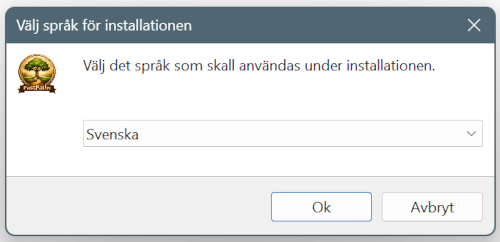
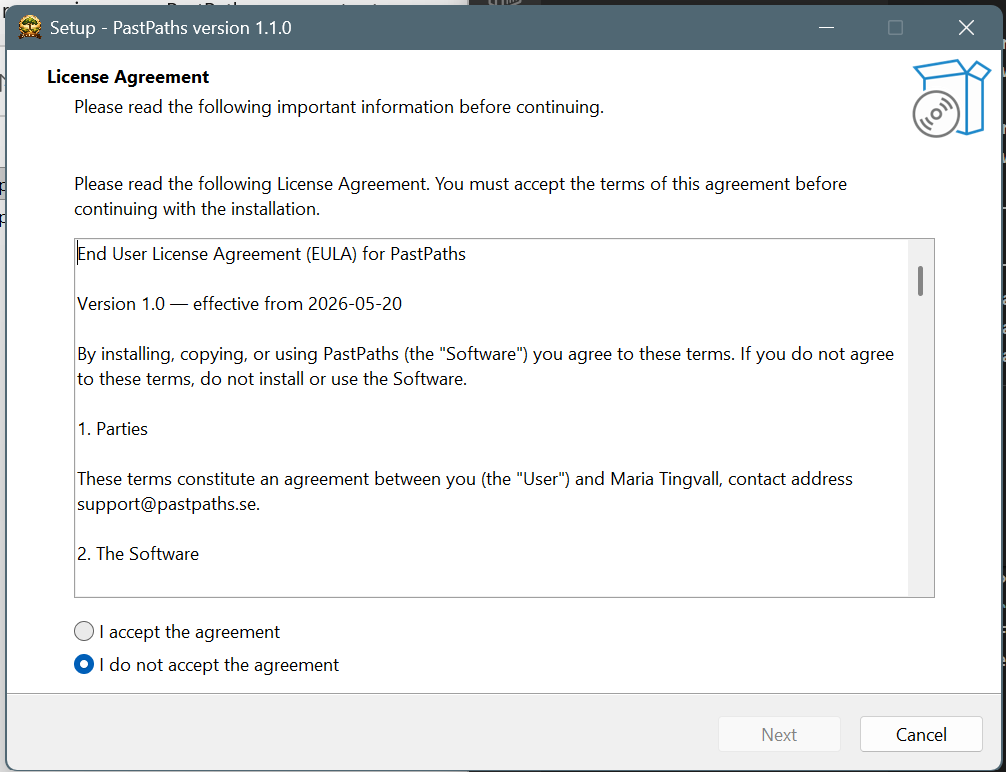
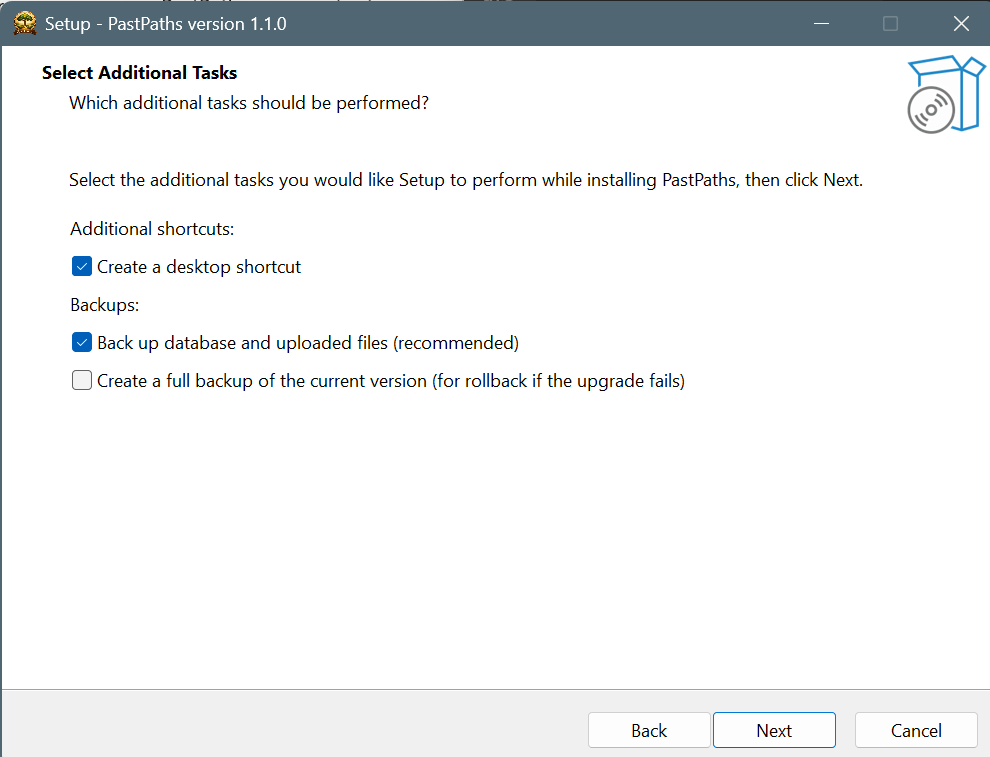
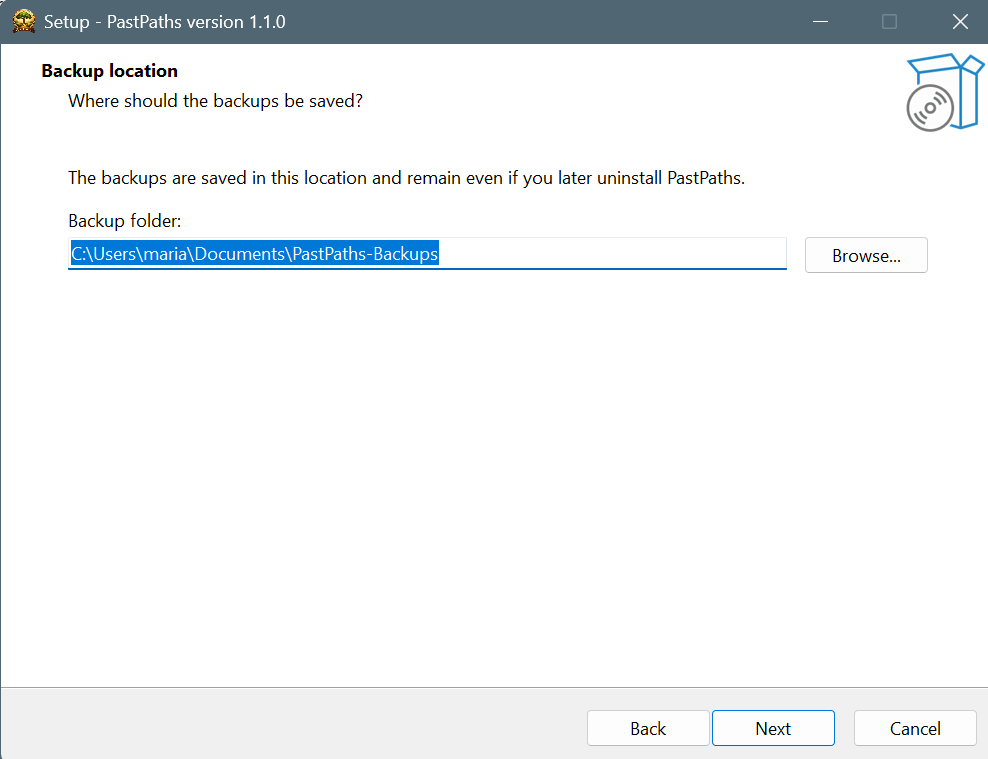

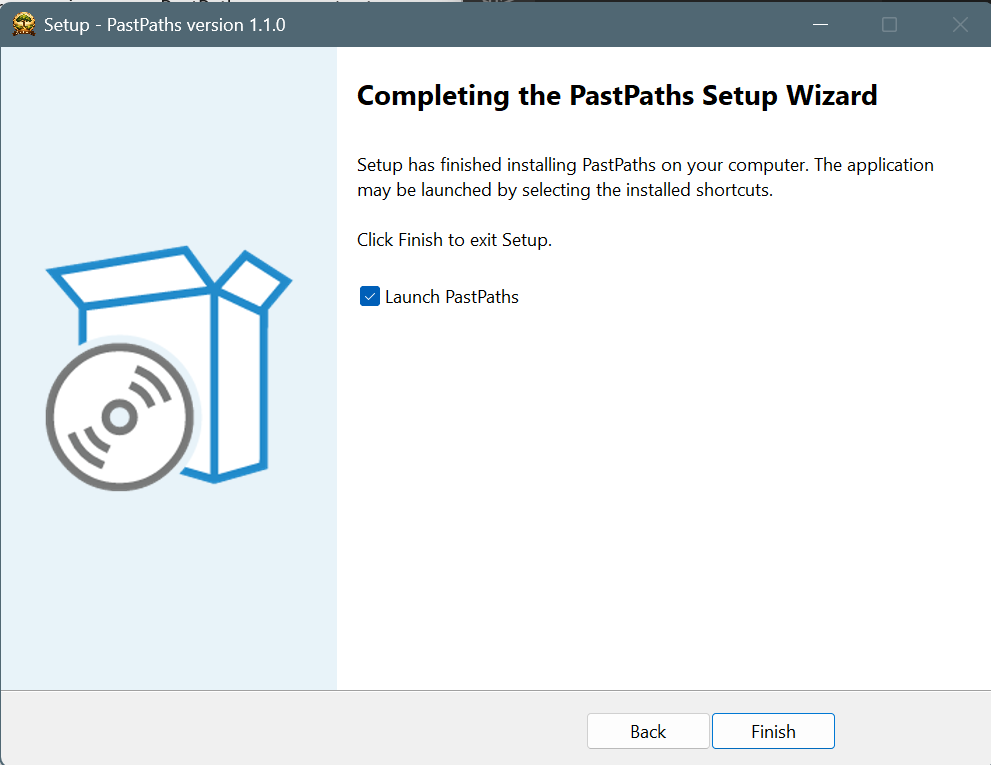
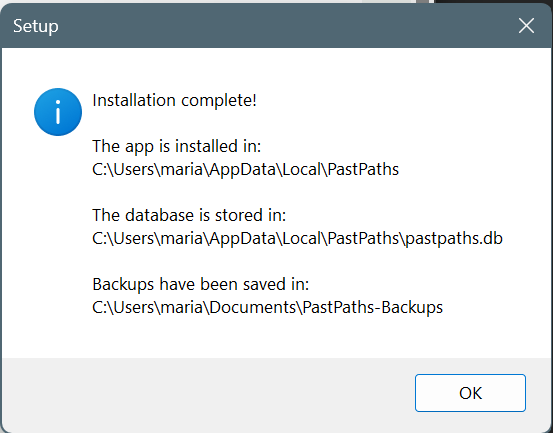
Done! You'll find PastPaths in the Start menu.
The first time you start it
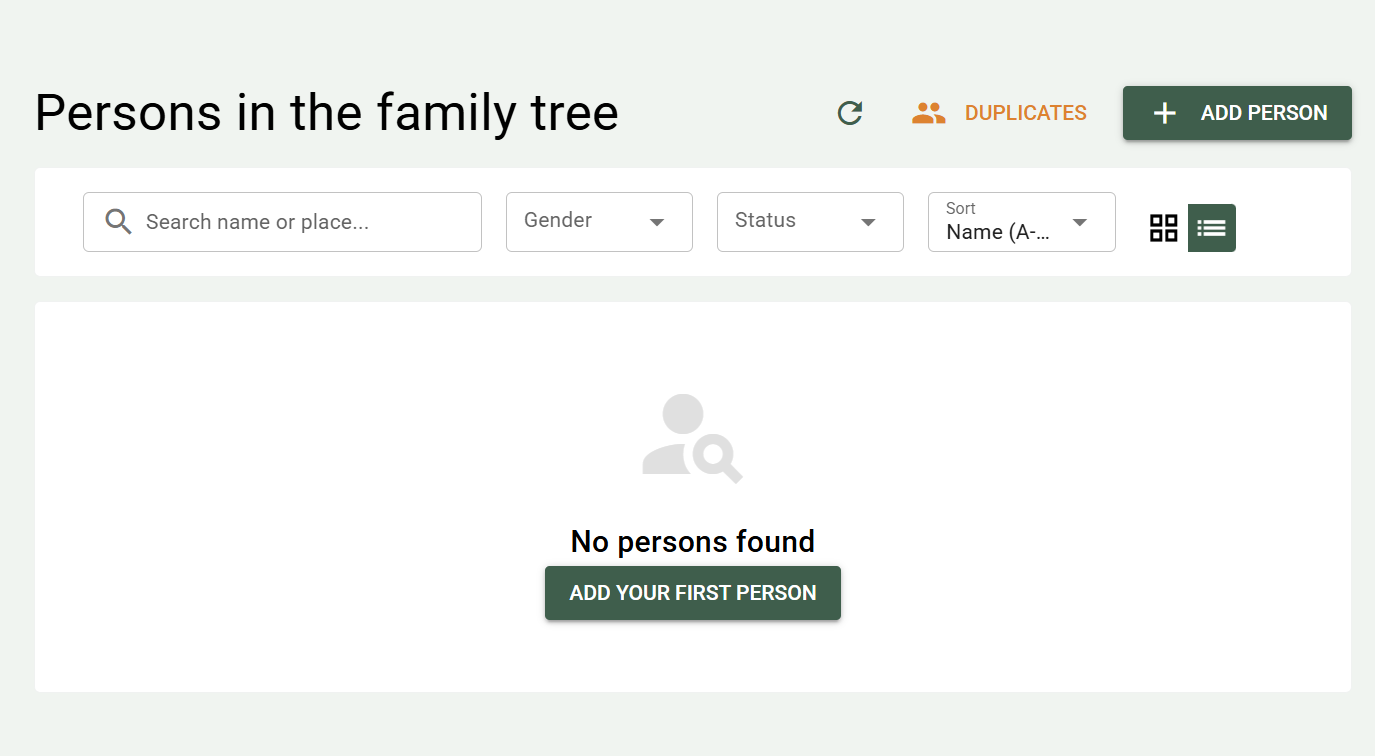
The first time you start PastPaths, it sets up a place for your genealogical data on your computer. This only takes a moment — then you're ready to begin.
Want to move the installation later?
The program and your genealogical data are stored in the same folder. When you uninstall, you choose what to delete. Anything left unchecked stays, so you can reinstall without losing data. More about where the data lives can be found under Overview and Troubleshooting.
Make a backup first
Before making major changes — whether that's moving the installation, updating Windows, or switching computers — make a backup on the Import & Export page. More info in troubleshooting.